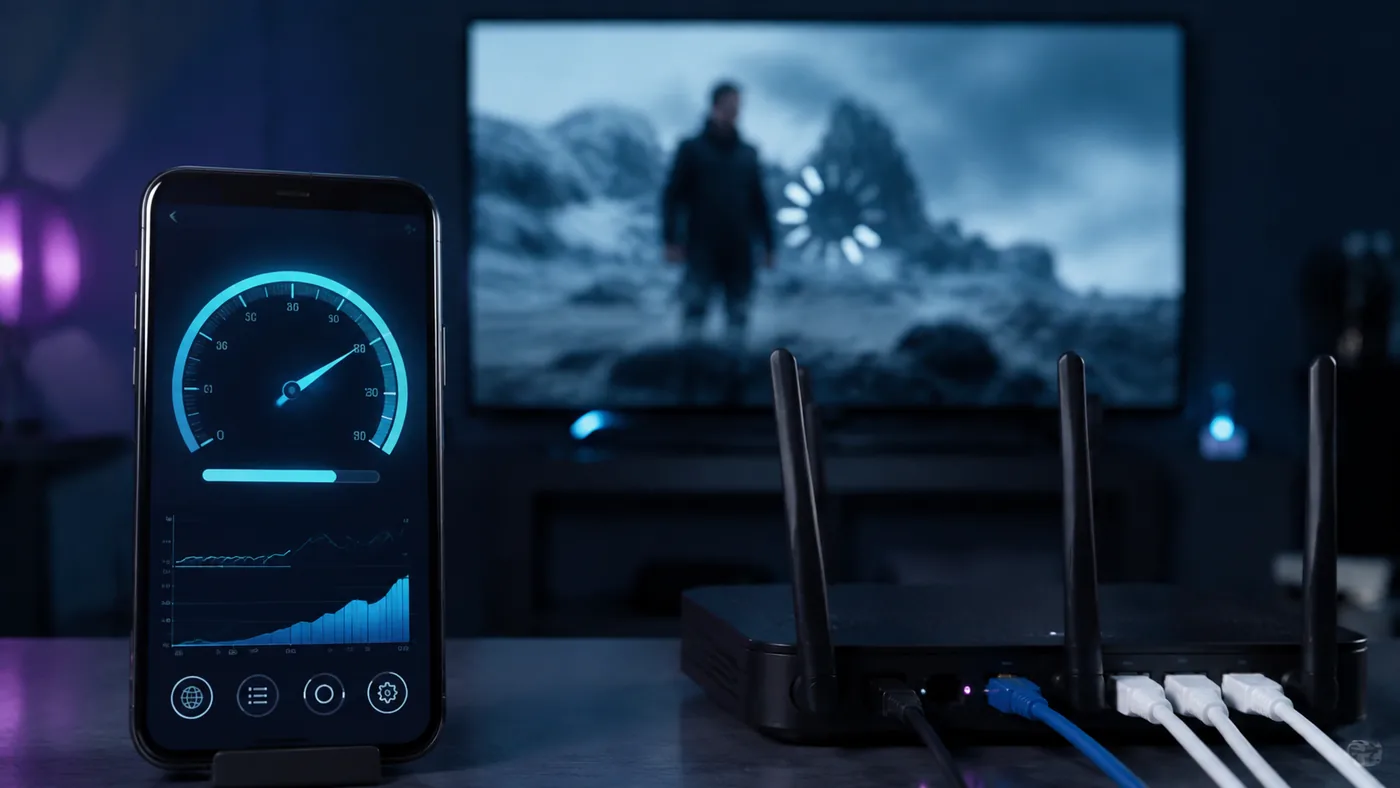
IPTV buffering but internet is fast is not a contradiction. A speed test measures how much data your connection can move for a few seconds to a nearby test server. Live television needs something different: a steady flow of small video segments from one specific server, through one specific route, without pauses. You can have 300 Mbps available and still freeze whenever that route loses packets for half a second.
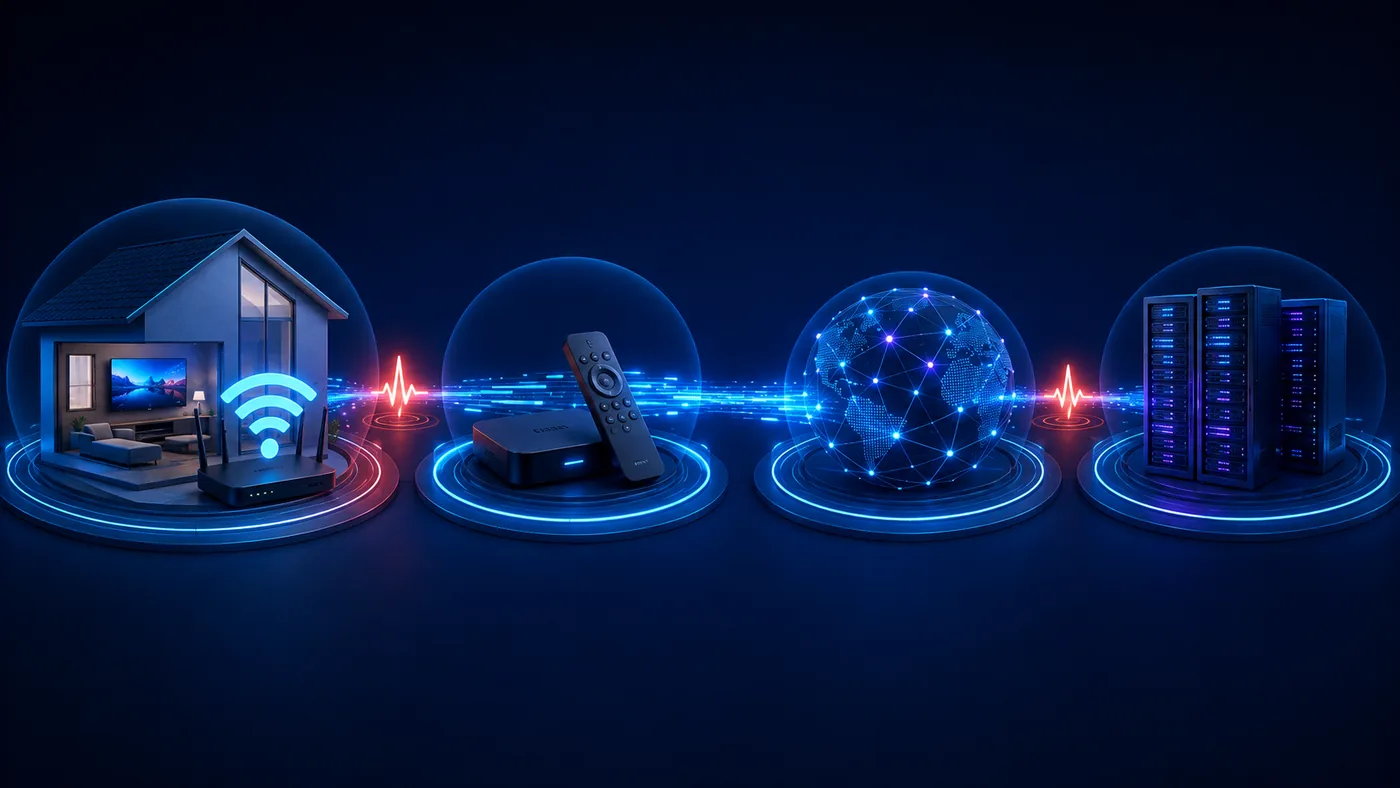
The useful question is therefore not “Is my broadband fast?” It is “Where does this stream stop being stable?” The answer can sit inside your home, in the streaming device, in the player app, on the ISP network or at the channel source. Each cause looks like the same spinning circle, but each requires a different fix.

The 60-second diagnosis
Before changing settings, run three comparisons. They isolate more causes than an hour of random restarts.
- Change channel. Open three unrelated channels. If only one buffers, your home connection and device are probably fine; that channel feed is the likely fault.
- Change network. Connect the same device to your phone hotspot for one minute. If the stream becomes smooth, the issue is inside your home network or ISP route. If it remains bad, look at the app, device or provider.
- Change device. Open the same channel and account on a phone or tablet. If the second device works on the same Wi-Fi, the original device or its player settings are responsible.
What the result means
- One channel fails everywhere → channel source or provider issue.
- All channels fail only on home Wi-Fi → router, interference or ISP route.
- All channels fail only on one device → app, storage, decoder or heat.
- Everything fails at the same busy hours → ISP congestion or provider capacity.
Why IPTV buffers when your speed test looks excellent
Netflix and YouTube can download a large part of a programme ahead of you. Live IPTV stays close to real time, so it normally holds only a small safety buffer. A brief delivery gap that a film app would hide becomes a visible pause on live television.
Headline speed is only one measurement. Jitter is variation in how long packets take to arrive. Packet loss means some data never arrives and must be requested again. Latency is the travel time between you and the server. A stable 30 Mbps connection with low loss can outperform a 500 Mbps Wi-Fi connection that drops packets every minute.
The location of a speed-test server matters too. Your test may use a server ten kilometres away while the stream travels through several networks to another country. One route can be excellent while the other is congested. This is why changing DNS or testing a VPN sometimes helps even though neither increases the speed you buy from your ISP.
Read the buffering pattern before you fix it
The timing gives away the cause. A channel that freezes at exactly the same point on catch-up content usually has a damaged source file. A picture that plays for a minute, freezes, then repeats that cycle often indicates a buffer or decoder problem. Instant improvement after moving closer to the router points to Wi-Fi. Problems limited to major matches suggest source or server load.
| What you see | Most likely cause | First test |
|---|---|---|
| One channel buffers | Channel feed | Try its backup feed |
| Every channel buffers | Network, app or account route | Use a phone hotspot |
| Only one device buffers | Device memory or decoder | Play on a second device |
| Only evenings are bad | ISP or server congestion | Compare morning and evening |
| Audio continues, video freezes | Video decoder | Switch hardware/software decoding |
| Channel opens slowly, then plays | DNS or playlist load | Test public DNS and trim groups |
12 IPTV buffering fixes, in the right order
1. Restart the chain, not only the app
Force-stop the IPTV player, restart the streaming device, then power-cycle the router for 30 seconds. This clears stuck app processes, renews the network session and forces a fresh route. Restarting only the player leaves the other two variables untouched.
2. Test a backup feed
Good providers carry alternatives for popular channels. If the backup works immediately, stop changing your home setup. The original feed is overloaded or temporarily unavailable. Save both versions as favourites before the next live event.
3. Move from 2.4 GHz to 5 GHz
2.4 GHz reaches farther but is crowded by neighbouring routers, Bluetooth equipment and household devices. Use 5 GHz when the television is reasonably close to the router. If walls weaken 5 GHz too much, a mesh node near the TV is more reliable than switching back to a congested band.
4. Use Ethernet for the main television
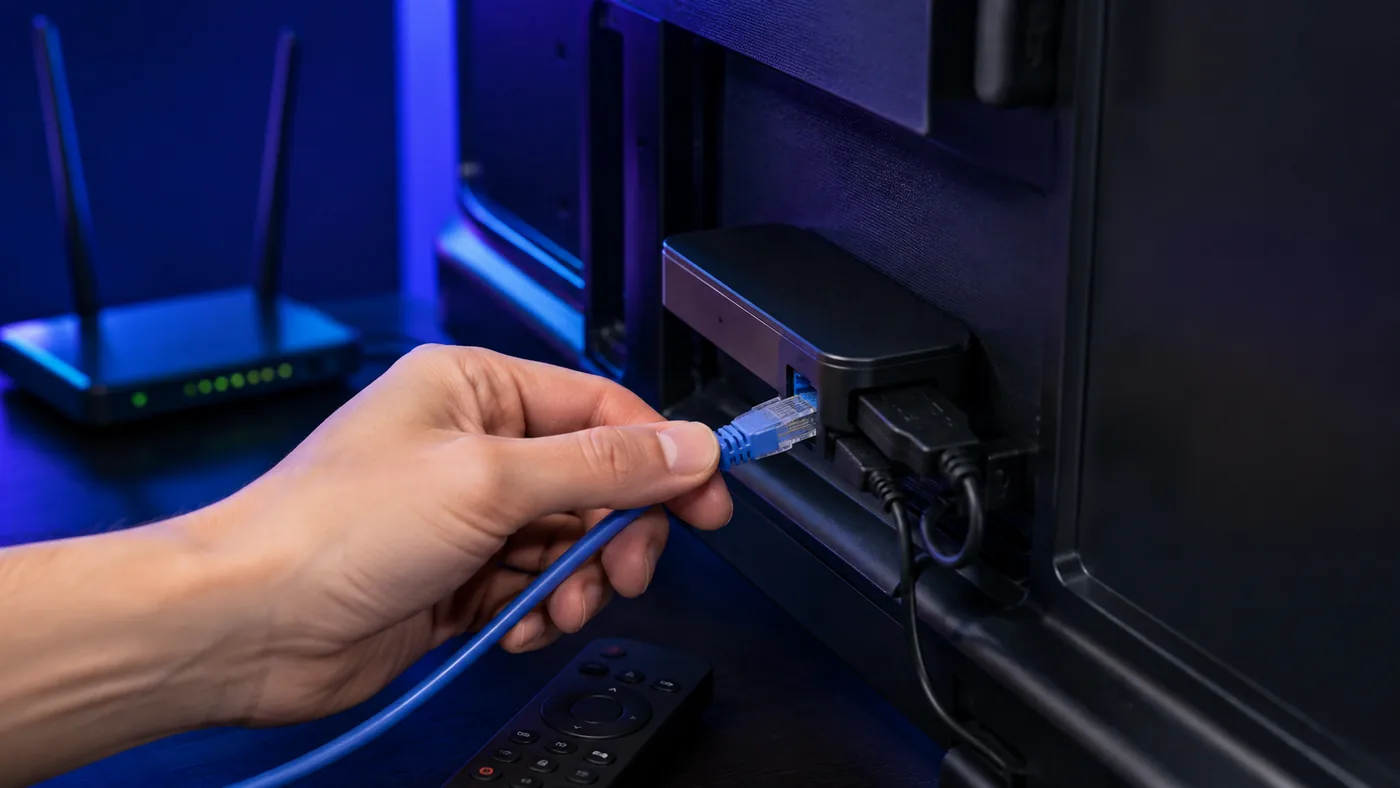
A cable removes radio interference and sudden Wi-Fi dips. Smart TVs and Android boxes often have an Ethernet port; Firesticks need an inexpensive adapter. The port may be limited to 100 Mbps, but that is far above the bitrate of one 4K stream. Stability matters more than the bigger Wi-Fi number.
5. Pause other heavy traffic
Cloud backups, console updates, security cameras and another 4K stream can briefly fill the router queue. Pause them during a test. If IPTV becomes smooth, enable Quality of Service on the router and prioritise the TV or streaming box instead of buying a faster plan immediately.
6. Clear cache, but do not erase app data
On Fire TV or Android TV, open Settings, Applications, Manage Installed Applications, choose the player and clear its cache. Do not select Clear Data unless you have saved your login details: that option removes the playlist and settings. A large or corrupted cache can cause slow menus, crashes and playback stalls.
7. Free storage and close background apps
Streaming sticks have limited memory. Keep at least 1 GB of storage free, uninstall apps you never use and restart after closing them. If the interface itself hesitates when you browse the guide, the device is under pressure before video decoding even begins.
8. Switch the video decoder
Hardware decoding is normally smoother and more efficient, but a particular stream codec may disagree with the device. Change hardware to software decoding, or software to hardware, and test the same channel for five minutes. Audio that continues while the picture freezes is a strong decoder clue.
9. Adjust the player buffer once
A larger buffer absorbs short network dips but adds channel-change delay and live latency. Start with medium or roughly five seconds. If a stream freezes for a long time before reconnecting, a smaller buffer plus auto-reconnect may work better. Change one setting at a time; otherwise you will not know which adjustment helped.
10. Update the player and device
Install the latest stable app version and operating-system update. Codec fixes and network-driver updates can remove device-specific stutter. Avoid unofficial “cleaner” apps: they consume memory, show advertising and often create more background activity than they remove.
11. Test a public DNS resolver
DNS translates the provider hostname into a server address. Try a reputable public resolver such as 1.1.1.1 or 8.8.8.8 in the router or device network settings. DNS will not repair a weak Wi-Fi signal, but it can improve slow channel starts or send you toward a better delivery endpoint.
12. Compare with and without a VPN
A VPN is a test, not an automatic cure. If the ISP route is congested or streaming traffic is shaped, a nearby VPN server may create a cleaner route. If the VPN server is busy or far away, it adds delay and makes buffering worse. Test the same channel for ten minutes with it off and on, using the nearest location, then keep the result that is measurably better.
Practical TiviMate and IPTV Smarters settings
In TiviMate, start with the system or hardware decoder, medium buffer and auto frame-rate only if your television handles refresh-rate switching cleanly. If channel changes produce a black screen or audio without video, disable auto frame-rate first, then test the alternate decoder. Update the playlist and electronic programme guide during quiet hours rather than at match time.
In IPTV Smarters, test the built-in player and the external-player option separately. Some devices behave better with VLC-style software decoding; others need the native hardware path. Keep stream format on the provider default unless support recommends a change. If the app has grown slow, clear cache and refresh the account before reinstalling it.
Whichever app you use, hide countries and channel groups you never watch. A smaller playlist reduces guide parsing, memory use and search load on low-powered devices. Our IPTV player comparison explains which app best suits Firestick, Android TV, Apple TV and Smart TV.
When the provider is genuinely the problem
Stop troubleshooting your house when the evidence points upstream. If one channel fails on several devices and networks, the source is at fault. If many channels fail only during a major event while ordinary channels remain smooth, the provider may lack peak-hour capacity. If your test line behaves badly from the first hour on both Ethernet and mobile data, more router changes will not rescue it.
Send support useful evidence: channel name, exact time and timezone, device, player, whether a backup feed worked, and whether the same problem appeared on mobile data. “It buffers” is hard to diagnose; a controlled comparison can be acted on immediately.
This is also why a trial should be tested at the busiest time you actually watch. Open a popular live channel, switch between several feeds, leave one running for at least 30 minutes and test on your normal device. A quiet morning trial says little about Saturday-night capacity.
How to prevent buffering from returning
- Keep the main TV wired or on a strong 5 GHz mesh connection.
- Restart a low-memory streaming stick weekly and keep free storage available.
- Schedule downloads, backups and playlist updates outside viewing hours.
- Keep two favourite feeds for important sports channels.
- Test during peak time before renewing a long subscription.
- Read our full internet speed for IPTV guide before upgrading broadband.
Frequently asked questions
Netflix preloads much more video and can hide brief connection drops. Live IPTV carries a smaller buffer to stay close to real time, so jitter, packet loss or a short server delay becomes visible sooner.
Only if your connection genuinely lacks bandwidth. If you already have a stable 15 Mbps for HD, 25 Mbps for Full HD or about 35 Mbps for 4K per stream, upgrading speed may change nothing. Test stability, Wi-Fi and the provider route first.
Sometimes. It can bypass a poor or shaped ISP route, but it can also add delay. Compare the same channel with the VPN off and with a nearby server; there is no universal answer.
Medium or around five seconds is a sensible starting point. Increase it for brief network dips; reduce it if stalled channels take too long to reconnect. Use auto-reconnect where available.
Evening-only problems usually indicate congestion: your home network is busier, your ISP route is crowded or the IPTV server is at peak load. The hotspot and VPN comparison helps separate those causes.
The bottom line
When IPTV is buffering but your internet is fast, do not buy more speed first. Change one variable at a time: channel, network, device, decoder and route. That sequence tells you where the instability lives and prevents endless setting changes. If Ethernet, a second device and mobile data all reproduce the same problem on the same feeds, the evidence is clear: contact the provider and use a backup source.
Related reading: Internet speed for IPTV · Best IPTV player apps · Install IPTV on Firestick · Watch live sports without cable · IPTV username & password