“How to install IPTV Smarters Pro on Firestick” is one of the most searched IPTV questions for a simple reason: the Fire TV Stick is the most popular IPTV device in the world, and IPTV Smarters is the most popular player — yet Amazon does not list it. The workaround is official and safe as long as you take the app from its developer, and it takes about ten minutes.
This guide is specific to IPTV Smarters Pro. If you would rather use TiviMate or another player, our general install IPTV on Firestick guide covers those too.
Before you start
- Your IPTV login. A server URL, username and password from your provider. Smarters is only a player; it has no channels of its own.
- A few hundred MB of free storage. Check under Settings → My Fire TV → About → Storage. Uninstall apps you never open if space is tight.
- The remote with working batteries. You will type a URL on the on-screen keyboard.
- Ten minutes. Most of it is waiting for downloads.
This method works on Fire TV Stick Lite, Fire TV Stick (3rd gen), Fire TV Stick 4K, 4K Max and Fire TV Cube, and on Fire TV smart TVs from Toshiba, Insignia and others.
Step 1: Unlock developer options and allow unknown apps
Newer Fire OS versions hide the developer menu. Reveal it once and it stays:
Open Settings → My Fire TV → About
On older menus the tile is called “Device & Software”.
Click your device name seven times
Highlight the first line (for example “Fire TV Stick 4K Max”) and press the select button seven times until a message says you are a developer.
Go back to My Fire TV → Developer options
Turn on ADB debugging only if you need it (you do not, for this guide). Open Install unknown apps.
You will set the specific app allowance in the next step, once Downloader is installed.
Step 2: Install Downloader from the Amazon Appstore
Downloader is a free, widely used Fire TV app whose only job is to fetch files from a web address. Press the search icon on the home screen, type Downloader, choose the orange app by AFTVnews and select Get.
Then return to Settings → My Fire TV → Developer options → Install unknown apps and switch Downloader to ON. That allowance applies to Downloader only, which is safer than the old system-wide “Apps from unknown sources” switch.
Step 3: Download and install IPTV Smarters Pro
Open Downloader, allow it access to files when asked, and select the address bar on the Home tab.
- Type the developer’s official website,
iptvsmarters.com, and press Go. Downloader opens it in its built-in browser. - Open the site’s Downloads section and pick the Android / Fire TV APK.
- When the download finishes, Fire OS asks whether to install. Choose Install.
- When it says “App installed”, choose Done — not Open — so you can delete the installer file and recover the space.
- Downloader offers to delete the APK. Choose Delete twice.
Take the APK from the developer’s own site, not from a random mirror or a shortcode posted in a comment. Modified copies of popular IPTV players are a known route for adware, and a Firestick has no antivirus to catch them.
Finally, put the app where you can find it: hold the Home button, choose Apps, highlight IPTV Smarters, press the menu (☰) button and select Move to front.
Step 4: Log in with Xtream Codes
Open IPTV Smarters Pro, accept the terms, and choose Login with Xtream Codes API. This is the best option whenever your provider sent a URL, a username and a password: it builds proper categories and loads films, series and the TV guide automatically.
| Field | What to enter | Watch out for |
|---|---|---|
| Any name | Anything, e.g. “Varesteam4K” | Only a label for the profile |
| Username | Exactly as sent | Case-sensitive; no spaces at the end |
| Password | Exactly as sent | Letter O vs zero, l vs 1 |
| URL | http://server:port | Keep http:// and the port; do not add a slash or /get.php |
Select Add user. The first load downloads the channel list, VOD library and EPG; on a Fire TV Stick Lite that can take a minute or two. When the dashboard appears with Live TV, Movies and Series tiles, you are done.
If you were given a single long link instead, choose Load your playlist or file/URL and paste it there. Our M3U guide explains the difference.
Five Smarters settings worth changing
- Stream format. In Settings → Stream format, try MPEGTS (.ts) if live channels stutter on the default; switch to HLS if they do not start at all.
- Player selection. If one channel shows a black screen with sound, set the built-in player for live TV, or try VLC as an external player.
- EPG time shift. If the guide is an hour off, correct it in the EPG / time-shift setting rather than blaming the provider. More in our EPG guide.
- Automation. Turn on automatic refresh of channels and EPG on start-up so new channels and corrected guide data appear without you doing anything.
- Parental control. Set a PIN and lock adult or late-night categories if children use the TV.
Common errors and how to fix them
| What you see | Usual cause | Fix |
|---|---|---|
| “Invalid username or password” | A typo, missing port or wrong login type | Re-enter by copying exactly; check http:// and :port |
| App not installed / parse error | Incomplete download or wrong APK | Delete it, free storage, download again from the official site |
| Stuck on “Loading” | Low storage or very slow first sync | Clear cache in Settings → Applications, then reopen |
| Channels buffer every few seconds | Wi-Fi, stream format, or too many devices | Switch to .ts, move closer to the router, close other screens |
| Sound but black picture | Codec or player issue on that channel | Change the player, or try the HD feed instead of 4K |
| Worked yesterday, not today | Expired line or an app update | Check your expiry date in the app; contact the provider |
For buffering that survives all of the above, work through our 12-step buffering checklist, and consider whether a VPN would help with ISP throttling.
Frequently asked questions
No. It has to be sideloaded with Downloader, which is the standard, Amazon-permitted way to install apps from outside the store on a Fire TV device.
The player is free to download and use. It does not include any channels; you need a subscription from an IPTV provider to log in.
Yes, when the file comes from the developer’s official site. Only allow unknown apps for Downloader, and delete APK files after installing.
Usually the URL is missing http:// or the port number, a character was mistyped, or the M3U option was chosen instead of Xtream Codes. Copy the details exactly as sent.
You can install it on both. Whether both can play at once depends on how many simultaneous connections your plan includes. Each Varesteam4K plan includes one; extra connections are arranged on WhatsApp.
Sideloaded apps do not update through Amazon. When the app prompts you, or when something breaks, download the latest APK the same way and install it over the old one; your login is kept.
The bottom line
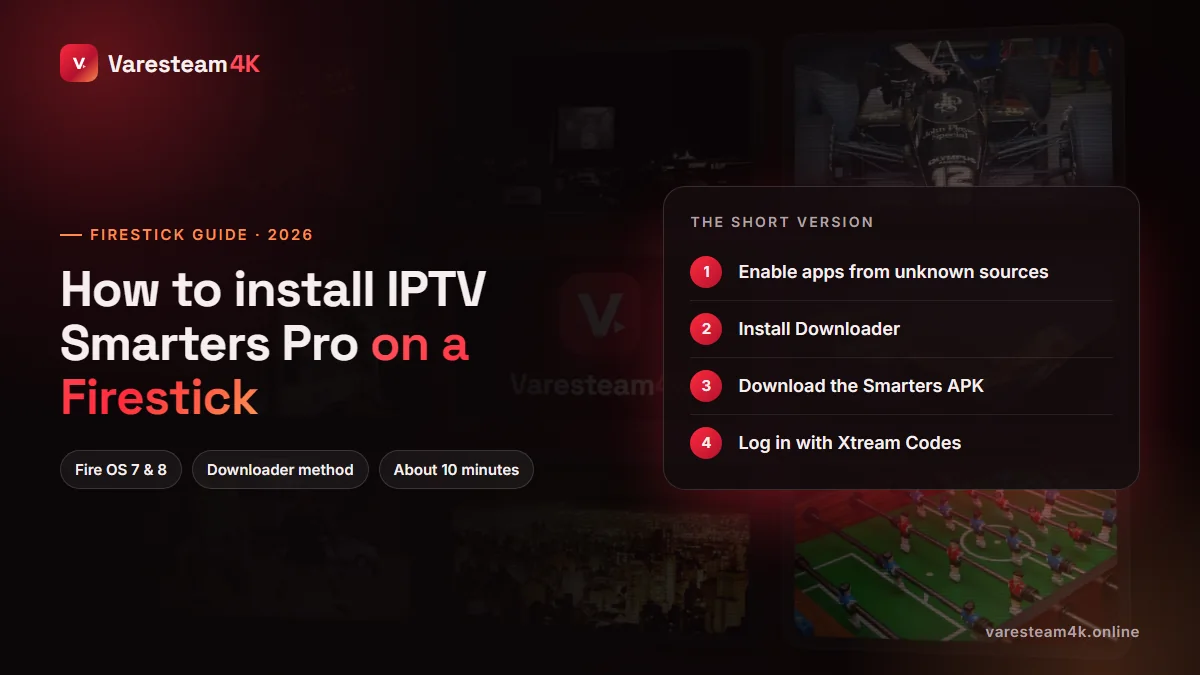
Installing IPTV Smarters Pro on a Firestick is four moves: unlock developer options, install Downloader, fetch the official APK, and log in with Xtream Codes. Take the file from the developer, copy your details exactly, and set the stream format once. That is everything between you and a working channel list.
Related reading: Install any IPTV app on Firestick · IPTV Smarters alternatives · IPTV username and password · Best device for IPTV