What does EPG mean on IPTV?
EPG stands for Electronic Programme Guide. On IPTV it is the grid that tells you what is on each channel now, what comes next, and what is scheduled for the coming days — the same thing a cable box shows when you press “Guide”. A good EPG is what turns a list of 80,000 streams into something that feels like television: you can see that the match starts at 8, set a reminder, and jump straight to it.
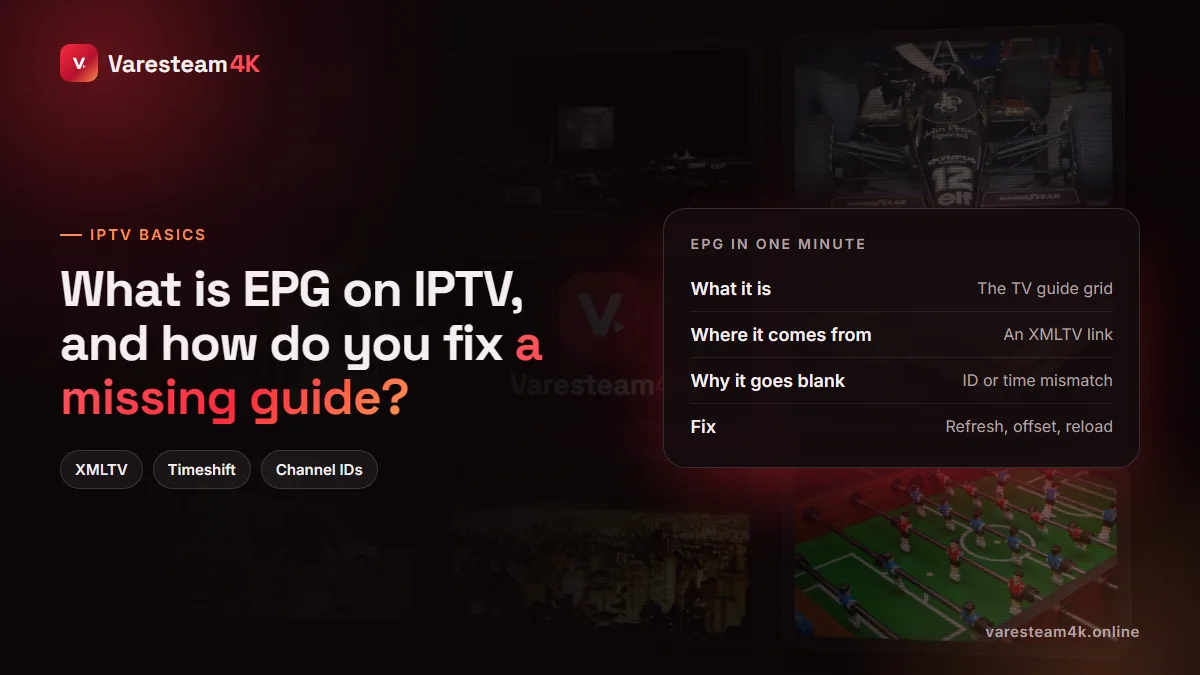
How the TV guide gets into your IPTV app
This is the part most people never get told, and it explains every EPG problem. The channels and the guide are two separate downloads:
- The channel list comes from your Xtream login or M3U playlist.
- The guide comes from an XMLTV file — a large text file listing programme titles, start and end times, and descriptions for each channel.
Your app then matches the two. Each channel in your playlist carries an ID (in an M3U it is the tvg-id tag), and each channel in the XMLTV file carries an ID too. Where the IDs match, the guide appears. Where they do not, you see “No information”. On an Xtream provider the XMLTV link usually looks like this:
http://server:port/xmltv.php?username=YOURUSER&password=YOURPASS
| Piece | What it does | When it breaks |
|---|---|---|
| XMLTV link | Delivers the schedule data | Wrong link, expired login, file too large for the device |
| Channel IDs | Match guide data to channels | Channel renamed or ID missing in the playlist |
| Time zone / offset | Shows times in your local clock | Device clock wrong, or provider data in UTC |
| Refresh schedule | Keeps the next days loaded | App never refreshes; guide runs out after a few days |
How to add EPG in IPTV Smarters, TiviMate and other apps
IPTV Smarters Pro
With an Xtream Codes login, the guide loads automatically — there is nothing to add. If it does not appear, open the live TV section and use the option to refresh or install EPG, then wait while it downloads. With an M3U playlist, open the playlist’s settings and paste the XMLTV link your provider gave you.
TiviMate
Xtream playlists bring their EPG automatically. For M3U playlists, or to add a second source, go to Settings → EPG → Add EPG source, paste the XMLTV URL, then choose Update EPG. TiviMate also lets you set how many days to keep and how often to refresh.
OTT Navigator, IBO Player and Smart TV apps
Most follow the same logic: automatic with Xtream, a separate “EPG URL” field with M3U. On MAC-activated TV apps, the EPG link is often entered on the app’s website next to the playlist.
Prefer the Xtream login whenever your provider offers it. The guide comes bundled and matched, and you avoid most of the problems below. If you are unsure which format you have, our M3U explainer shows how to tell.
Why your IPTV guide is blank, missing or wrong
| Symptom | Most likely cause |
|---|---|
| Whole guide says “No information” | EPG never downloaded, or M3U used without an XMLTV link |
| Some channels have a guide, others do not | ID mismatch on those channels, or no data exists for them (common for 24/7 and event channels) |
| Guide is exactly one or more hours off | Time-zone offset or device clock |
| Guide stops after a few days | App not refreshing the EPG automatically |
| App freezes while loading the guide | XMLTV file too large for a low-memory device |
How to fix your IPTV EPG, in order
- Check the device clock. Set date and time to automatic and choose your correct time zone. A wrong clock shifts every programme.
- Refresh the EPG manually. In the app, choose update/refresh EPG and wait until it finishes before opening the guide.
- Apply a time offset. If everything is exactly an hour out, use the app’s EPG time-shift setting (+1 / −1) rather than changing your clock.
- Re-add the account as Xtream. If you are on M3U without a guide, switching to the Xtream login usually solves it in one step.
- Reduce the guide size. On small sticks, limit the EPG to two or three days, or hide channel groups you never watch.
- Turn on automatic refresh. So the guide never runs out at the end of the week.
- Ask your provider. If particular channels have no guide after all of this, send support the channel names; a missing ID mapping is a quick fix on their side.
Frequently asked questions
EPG means Electronic Programme Guide: the TV guide showing what is on now, next and over the coming days for each channel in your IPTV app.
Log in with Xtream Codes and the guide loads automatically in most apps. With an M3U playlist, add the provider’s XMLTV link in the app’s EPG settings.
Usually the device time zone or a daylight-saving change. Set the clock to automatic, then use the app’s EPG time-shift setting if it is still off.
Either the channel’s ID does not match the guide data, or no schedule exists for it, which is normal for 24/7 and one-off event channels.
TiviMate on Android TV and Fire TV is widely considered the best guide view. On Apple TV, iPlayTV and IPTVX have very good guides. See our player ranking.
Yes. Varesteam4K lines include a 7-day programme guide that loads automatically with an Xtream login; an XMLTV link is available on request for M3U setups.
The bottom line
The EPG is a separate data feed that your app matches to your channels by ID and shifts by time zone. Use an Xtream login, keep the device clock right, refresh regularly, and the guide takes care of itself.
Related reading: Catch-up and DVR · M3U playlists explained · IPTV Smarters alternatives · IPTV login guide