What is a MAG box, and what is a portal?
MAG is a range of IPTV set-top boxes made by Infomir — models such as the MAG 322, MAG 424 and MAG 524. They were designed for operators, and they log in differently from apps: instead of typing a username and password, the box connects to a portal (a web address on the provider’s server), and the server recognises the box by its MAC address, a hardware ID printed on its label.
STB Emulator is an Android app that imitates a MAG box, so phones, Android TV boxes and Fire TV devices can use the same portal-style login. In both cases your subscription is tied to the MAC address, which is why setup always starts with sending it to your provider.
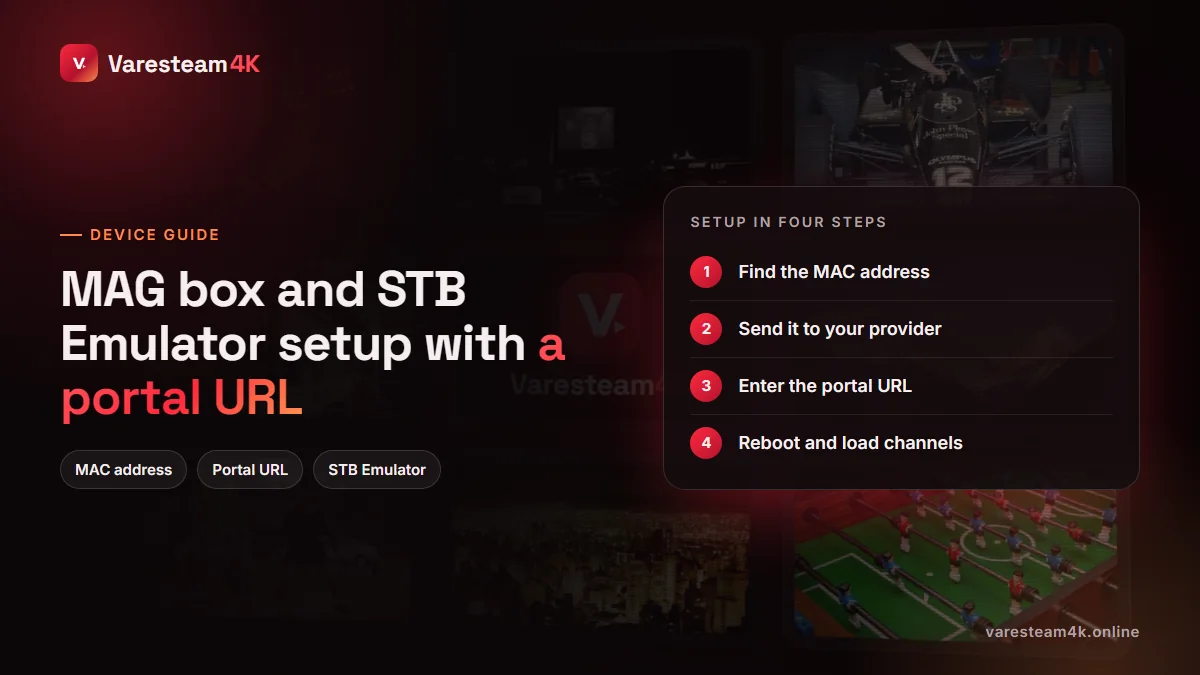
Step 1: Find your MAC address and send it to your provider
- MAG box: on the sticker underneath, or in Settings → Device info. MAG MAC addresses start with
00:1A:79. - STB Emulator: open the app, go to Settings → Profiles → (your profile) → STB configuration → MAC address. The app generates one that also starts with
00:1A:79.
Send the full MAC to your provider. They register it on the server and reply with the portal URL, which usually ends in /c/, for example http://portal.example:8080/c/. Until the MAC is registered, the box cannot log in, however perfectly you type the URL.
The MAC is your login. Do not post a photo of the box label online, and never change the MAC in STB Emulator after it has been registered — the server will treat it as a different device.
Step 2: Set up a MAG box
Open the portal settings
Go to Settings → System settings → Servers → Portals. On newer firmware the path is Settings → Servers → Portals.
Enter portal 1
Give it a name (e.g. “Varesteam4K”) and type the portal URL exactly, including http://, the port and the trailing /c/.
Save and reboot
Press OK, go back, and choose Restart portal or power-cycle the box.
Let it load
The portal interface appears with TV, Video Club and guide sections. The first load can take a minute.
Connect the MAG by ethernet if you can. Older MAG models have weak Wi-Fi, and a portal that keeps dropping is very often a Wi-Fi problem.
Step 3: Set up STB Emulator on Android or Fire TV
Install STB Emulator
From Google Play on Android devices. On a Fire TV, sideload it with Downloader the same way as in our Firestick guide.
Choose the STB model
In Settings → Profiles → Test portal → STB configuration → STB model, choose the model your provider recommends — MAG 250 or MAG 254 are common defaults.
Note or set the MAC
Copy the MAC shown there and send it to the provider, or enter the MAC they assigned you.
Enter the portal URL
Under Portal settings → Portal URL, type the URL you were given. Go back and the app reloads the portal.
The free version of STB Emulator shows occasional ads; the Pro version removes them and adds a few options.
MAG and STB Emulator errors, decoded
| Message | What it really means | Fix |
|---|---|---|
| STB blocked | MAC not registered, subscription expired, or the MAC is in use elsewhere | Check the MAC with your provider; make sure no other device uses it |
| Portal not found / page not available | URL wrong or server unreachable | Check http://, the port and the /c/ ending |
| Authorization failed | MAC mismatch or wrong STB model | Re-check the MAC; try MAG 250 or 254 as the model |
| Stuck on “Loading portal” | Slow network or a temporary server issue | Use ethernet, reboot router and box, try again later |
| Channels load but freeze | Wi-Fi or buffer settings | Wired connection; see buffering fixes |
Portal login vs Xtream login: which is better?
| Portal (MAC) | Xtream Codes | |
|---|---|---|
| Devices | MAG boxes, STB Emulator | Almost every IPTV app |
| What you type | Just the portal URL | URL, username, password |
| Change device | Provider must re-register the MAC | Log in anywhere |
| Interface | Fixed portal look | Your choice of player |
| Best for | An existing MAG box, operator-style setup | Everything else |
If you already own a MAG, the portal is the natural choice. If you are setting up a new Android or Fire TV device, an Xtream login in a modern player such as TiviMate is usually more flexible — see our player comparison.
Frequently asked questions
It is the web address of the provider’s middleware that MAG boxes and STB Emulator log in to. It usually ends in /c/ and works together with your registered MAC address.
The server refused your MAC address: it is not registered, the subscription has expired, or the same MAC is active on another device. Contact your provider with the MAC shown on your device.
Smart STB is another app that imitates a set-top box on Smart TVs. It uses the same kind of portal URL and MAC registration as a MAG box; your provider supplies the URL after registering the MAC.
Yes. MAG boxes have slots for several portals; you choose which one loads at start-up or switch between them in the portal settings.
Current Infomir models such as the MAG 524 support 4K and HEVC. If you do not already own a MAG, a Fire TV Stick 4K Max or Android TV box with a modern player is usually better value.
Yes. Send your MAC address on WhatsApp and we register it and reply with your portal URL. The free trial works on MAG too.
The bottom line
MAG boxes and STB Emulator log in with a MAC address and a portal URL. Send the MAC first, type the URL exactly with its /c/ ending, use ethernet, and most problems never appear. For new devices, an Xtream login in a modern app is the more flexible route.
Related reading: IPTV username and password · M3U playlists · Best device for IPTV