The short answer
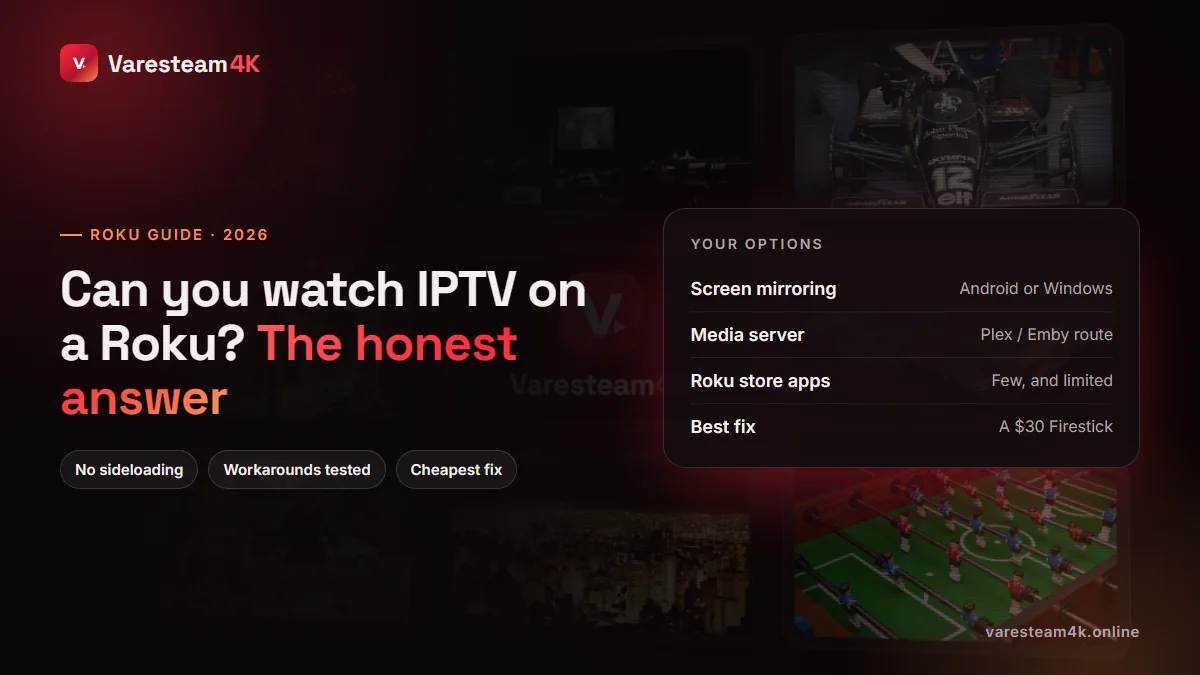
Can you install IPTV on a Roku? Not the way you can on a Firestick. Roku does not allow sideloading, and the popular IPTV players — IPTV Smarters, TiviMate, OTT Navigator — are not in its channel store. You can still watch IPTV on a Roku TV, but only through a workaround, and each workaround has a cost in picture quality, convenience or set-up time. For most people the right move is to plug a cheap Android-based stick into the Roku TV’s spare HDMI port and be done with it.
Why Roku and IPTV do not mix
Roku runs its own closed operating system. Apps (Roku calls them channels) must be built in Roku’s own language and approved for its store, and there is no setting that lets you install a file from elsewhere. Roku’s “developer mode” exists, but it is meant for programmers testing their own channels, it is not a practical way to run IPTV players, and channels installed that way do not survive well. Fire TV, Google TV and Android boxes, by contrast, run Android apps and let you install them freely.
Four ways to watch IPTV on a Roku, compared
| Method | Extra cost | Effort | Quality | Verdict |
|---|---|---|---|---|
| Screen mirroring | None | Low | Fair; drops and lag | Fine for one evening |
| Jellyfin / Emby server | None (a PC left on) | High | Good | For hobbyists |
| M3U player in Roku store | Sometimes | Medium | Variable | Basic, no proper guide |
| Add a Fire TV / Google TV stick | $30–60 once | Low | Excellent | The real fix |
Option 1: Screen mirroring from a phone or PC
Roku devices support screen mirroring from Android phones and Windows PCs, and many recent models accept AirPlay from iPhones. Install an IPTV player on the phone or computer, start a channel, and mirror the screen to the Roku.
- Android: enable Settings → System → Screen mirroring on the Roku, then use Smart View, Cast or Screen mirroring in your phone’s quick settings.
- Windows: press
Win+Kand choose the Roku. - iPhone: on AirPlay-capable Rokus, use the AirPlay icon inside the player or Screen Mirroring in Control Centre.
It works, but the picture is re-encoded on the fly, so fast sport smears, the sound can drift, and your phone is tied up for the whole match. Use it to test a line, not as a daily setup.
Option 2: A media server with a Roku app (Jellyfin or Emby)
Jellyfin (free and open source) and Emby both have Live TV features that accept an M3U tuner and an XMLTV guide, and both have official apps in the Roku store. You install the server on a PC or NAS at home, add your IPTV M3U link and EPG link as a tuner, and the Roku app shows the channels with a proper guide.
- Install Jellyfin Server on a computer that stays on.
- In the dashboard, open Live TV and add a tuner of type M3U Tuner with your playlist URL.
- Add a TV guide data provider of type XMLTV with your EPG link, then map channels if needed.
- Install the Jellyfin channel on the Roku and sign in to your server.
Quality is good because the Roku receives a proper stream, but you are now running a server, and that computer must be on whenever you want to watch. If the words M3U and XMLTV are new to you, read our M3U guide and our EPG guide first.
Option 3: M3U playlist players in the Roku store
Search the Roku channel store for “M3U” or “IPTV” and a handful of simple playlist players appear. They come and go, and they are basic: you paste an M3U link, get a flat list of channels, and usually no programme guide, no catch-up and no film categories. Some charge a small fee. Be careful what you paste where — an M3U link contains your username and password, so only use a player whose developer you are comfortable trusting with it.
Option 4: Add a $30 streaming stick to the Roku TV
A Roku TV is still a perfectly good television with spare HDMI ports. Plug in a Fire TV Stick, a Google TV dongle or an Android TV box and you get the whole world of IPTV players, a real TV guide, catch-up, recording options and fast channel changes, while the Roku side keeps running Netflix and the rest. Switch inputs with the TV remote, or use HDMI-CEC so the stick’s remote switches the TV for you.
It is the cheapest permanent answer and the one we recommend. Our streaming device guide compares models, and this walkthrough gets IPTV Smarters running on a Firestick in ten minutes.
Frequently asked questions
No. IPTV Smarters is not available in the Roku channel store and Roku does not allow installing apps from outside it.
Indirectly: by screen mirroring from a phone or PC, through a media server such as Jellyfin with its Roku app, or with a basic M3U player from the Roku store.
Plug a Fire TV Stick or Google TV dongle into one of the Roku TV’s HDMI ports. It costs $30–60 and gives you every proper IPTV player.
Not in any practical sense. Roku’s developer mode is for building and testing Roku channels, not for installing Android IPTV players.
Through the workarounds above, yes, and we can send an M3U link and EPG link for a Jellyfin setup. For the best experience on a Roku TV we recommend adding a streaming stick.
The bottom line
Roku and IPTV are not natural partners. Mirroring works in a pinch, a Jellyfin server works if you enjoy tinkering, and store playlist apps are basic. The simple, permanent fix is a $30 stick in the TV’s spare HDMI port.
Related reading: Best streaming device for IPTV · IPTV on Samsung & LG TV · How to get IPTV